NLSI’s website has a Map viewer where the primary goal is to open access to NLSI’s data in a convenient and user-friendly way. The IS 50V database, the popular Atlas maps and SPOT-5 satellite images of the entire country, in both infrared and natural colors, can be viewed in the Map viewer. Names can be viewed, but their number increases as you zoom in. Distances can be measured and coordinates obtained which is useful for hiking and outdoor enthusiasts.
Publication of the data
When the Map viewer is opened it shows satellite images in natural colors with the main place names. If you zoom into the image by clicking on the scale-bar in the upper left corner or by double-clicking on the image, more names appear.
By clicking on the triangle on the scale bar you can see the scale on the data.
You can also change to different maps. Below is a detailed explanation of the use of buttons the Map viewer offers.
Map:
Road legend
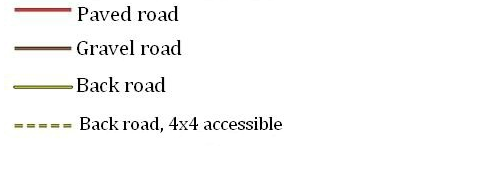
Legend on Atlas maps:
If you want information on the Atlas maps legend click here
Definition of buttons:
NLSI logo:
If you click on the National Land Survey of Iceland’s logo, in the upper left corner, it moves the user to the institute’s website.
Search:
Here the user can search by place names from different layers of the IS 50V database. You can search for place-names, local names, road names, or part of a name. If the database gives more than one name (for example there are many Laxá) then a list of names appears under the search button. To pick out names, click the Show list button and then select the name you are searching for. In the list that appears with the search results, you can sort each column by alphabetical or numerical order by clicking on relevant column. The Clear button clears out the search results.
Although the user can find the place name / name in the search, it may not appear on the map or Atlas map. It is also possible that names on the Atlas maps don’t show up when they are searched for.
Information
About:
This button gives the user information on the content and use of the Map viewer.
Disclaimer:
Here the user gets information about the disclaimer for using NLSI data including the data in the Map viewer.
It is important that users read thoroughly through the disclaimer and general terms.
Data
Map:
When this button is selected IS 50V data of the reference scale of 1:50 000 appears.
Atlas Maps:
Selecting this button shows the so-called Atlas Maps on a scale of 1:100 000 made by Danish Surveyors. These map have not been updated for years but give a clear picture of the country and have even been considered among the most beautiful maps that have been made of Iceland.
Image:
When selecting this button SPOT-5 satellite image in natural colors appears (the same image as when entering the Map viewer in the beginning). The image shown is composed of a number of satellite images put together and some parts of the image are annually updated.
Infrared image:
When selecting this button SPOT-5 satellite image in infrared colors appears. The image shown is composed of a number of satellite images put together in a mosaic and some parts of the image are updated annually.
Place names:
When checking the box in front of the Place names, place names appear in the Map viewer. By clicking with the mouse the place names disappear, although place names on the Atlas maps never disappear as they are part of the maps.
Actions
The following buttons can be active with other buttons, but only one at a time.
Move Map:
This button makes it possible to move the map by holding down the mouse button and drag it where you want. You can also use the keyboard arrow keys to pan the map when this button is activated.
Get coordinates:
By selecting this button you can click anywhere on the image/map and get the coordinates. Representation of the coordinates is shown in three different ways in degrees and minutes, in degrees or ISN93.
Note. The accuracy of the coordinates that appear may be some, but the bias for the satellite images can be up to 15 m. Bias of the map data may however be somewhat higher, from about 5 m, for roads, up to 50 m in contour- and hydrography data. It is also worth mentioning that those who intend to utilize the coordinates from the Map viewer need to keep in mind to select the correct format based on their map or GPS devices.
Measure:
By selecting this button you can measure the distance between points. This is done by clicking with the mouse on the start point, holding down the button and dragging the mouse along the route to be measured. When measurement is finished, release the mouse button and the measured distance appears alongside the Measure button.
British or Icelandic flag:
This button changes the language between English and Icelandic according to the selected flag.